ASUS Service Center in Dubai for ROG and TUF Gaming Laptop Repairs
Taking an ROG or TUF gaming laptop to an ASUS service center in Dubai goes best when you arrive knowing three things: whether the fault is likely to be covered (heat related wear and modifications often are not), whether the battery is safe to transport, and what the repair report should record when you collect it. Gaming laptops run hotter and draw more power than ordinary notebooks, and the UAE climate adds to that load, so the common faults are predictable: clogged cooling, throttling under load, worn batteries and, in the worst case, swollen ones. This guide covers each, quotes ASUS's own warranty and battery guidance, and lists the questions to ask before you sign the job sheet.
Why gaming laptops come back to the bench in the UAE
An ROG Strix or TUF Gaming laptop packs a high power processor and a discrete graphics chip into a chassis a couple of centimetres thick. Both chips share a cooling system of heat pipes, fins and fans, and that system can only shed heat into the air around it. When the room is warm, the intake air starts warm, and every degree counts against the same set of fins.
ASUS's own Battery Information Center makes the point for batteries: it notes that a notebook's internal temperature is higher than the outside temperature, and that operating at a higher or lower ambient temperature can cost 70 percent or more of capacity over the same number of cycles. The cooling hardware and the battery sit in the same hot box, so a laptop that runs hot every day wears faster everywhere.
The faults that follow from that load fall into four groups:
- Thermal throttling. Frame rates or render times drop after a few minutes of load because the chips slow themselves to stay within safe temperatures.
- Fan noise and dust. Fans run loud even at light load because fine dust has matted on the fin stack.
- Battery wear and swelling. Runtime collapses, or the case starts to separate.
- Charging and power faults. The laptop runs only on the charger, or will not charge past a point.
Thermal problems: what to try before booking a repair
Some heat problems are setup, not hardware. Rule these out first, because a service centre will check the same things and a visit costs you days without the machine.
- Check the surface. Most gaming laptops draw air from underneath. A bed, a sofa or a soft bag blocks the intake. Use a hard desk or a stand that lifts the rear.
- Check the vents. Shine a torch into the side and rear exhausts. Grey felt on the fins means the cooling system needs cleaning.
- Check the room. If the laptop throttles in a room where the air conditioning switches off after hours, the problem may be the room.
- Check the power mode. Look at the power setting in Windows and any performance profile in the laptop's own utility software. A quiet or battery saving profile deliberately limits power and will look like a slowdown.
- Check the charger. Gaming laptops need their full wattage adapter to reach full performance. A smaller travel adapter can limit speed or drain the battery under load.
If the laptop still overheats on a hard surface, in a cool room, on the correct adapter, the cooling system needs attention. That is a job for the service centre, not for a screwdriver at home, for the reasons in the next section.
What can void the warranty on an ROG or TUF laptop
Gaming laptop owners upgrade and tinker more than most, which is where warranty disputes start. ASUS's international warranty terms for the Middle East say the warranty covers technical hardware issues in normal use and lists exclusions. Those most relevant to gaming machines are:
- Damage by you or a non authorised third party, explicitly including improper installation of a drive or memory.
- Non original parts or software. For units fitted with non original drives or memory, ASUS will only test and repair under the original configuration and does not warrant issues those parts cause.
- Use outside the operating or storage conditions set out in the user's manual.
- Altered or removed serial numbers on the product or its components.
- Cosmetic wear such as rust, colour change and gradual deterioration that does not affect function.
- Cryptocurrency mining damage, unless the model was designed for mining.
- Third party software, viruses and data loss during repair.
The practical lessons: keep the original SSD and memory modules if you upgrade, so you can refit them before a warranty visit. Do not open the base to clean the fans yourself while the laptop is under warranty, because a broken clip or a lost screw becomes customer induced damage. And keep the laptop within the conditions in its manual; a gaming laptop used as an always on mining rig is outside the warranty by ASUS's own wording.
Battery swelling: stop, do not charge, and transport carefully
A lithium battery that is failing can swell. On a laptop you see it as a touchpad that clicks on its own, a keyboard deck that bows upwards, or a base panel that no longer sits flat on the desk. Treat any of these as a safety issue rather than an inconvenience.
- Shut the laptop down and unplug the charger. Do not keep using it to finish a task.
- Do not press the swelling back in, and do not try to remove the battery yourself.
- Keep it away from heat. ASUS warns that temperatures over 60 degrees Celsius might cause a battery pack to explode, leak or catch fire, and that it should not sit near any heat source. A car parked in a Dubai summer is exactly the wrong place to leave it while you run an errand.
- Carry it flat, on its own, in a hard case or box, straight to the authorised centre. If you cannot take it in promptly, ask ASUS about the UAE pickup option on its service locator page.
On cover, ASUS's battery warranty statement says it will replace a battery under warranty that does not charge, is not detected, triggers repeated replacement warnings or has an abnormally blinking charge indicator. It excludes the normal drop in capacity over time, tampering by non authorised personnel, missing proof of purchase or a broken warranty seal, signs of moisture corrosion, and misuse. A battery that has simply aged is wear; a battery that has failed is a fault. The repair report should say which one the centre found.
Slowing battery wear on a gaming laptop that lives on the desk
Most gaming laptops in offices and homes spend their lives plugged in, which keeps the battery at or near full charge. ASUS explains in its Battery Health Charging FAQ that sitting at 98 to 100 percent for long periods reduces battery life, and offers three modes, built into MyASUS on most models:
| Mode | Charging behaviour, per ASUS | Suits |
|---|---|---|
| Full Capacity (default) | Charges to full | Long sessions away from the charger |
| Balanced | Stops above 80 percent, resumes below 78 percent | Mixed use with regular meetings off the charger |
| Maximum Lifespan | Stops above 60 percent, resumes below 58 percent | A laptop that is always on the AC adapter |
For a gaming laptop used as a desktop replacement, ASUS's own recommendation points to Maximum Lifespan. Pair it with the battery maintenance advice in the Battery Information Center: ASUS notes that lithium batteries typically last between 300 and 500 cycles, and that storage between 10 and 30 degrees Celsius is best.
What a good repair report from an ASUS service center in Dubai should say
When you collect the laptop, the paperwork is your record for any future claim, and for a business it is the evidence behind an asset register entry. Before you leave the counter, check that the report or job sheet includes:
- The serial number of the laptop, matching the sticker.
- The fault as you reported it, in your words, and the date you handed it over.
- The diagnosis: what the technicians found, for example a clogged fin stack, a failed fan, a swollen battery or a faulty charging circuit.
- The parts replaced, with part descriptions, so you know whether the battery, fan or board is new.
- Warranty or chargeable, and if chargeable, which exclusion was applied and why.
- Tests after repair, ideally including a load test that shows the laptop now holds performance without throttling.
- Whether the system was reset to original settings, which ASUS warns can happen during repair.
If the report says "no fault found" on a thermal complaint, ask what load test was run and for how long. A short idle check will not reproduce a fault that appears after twenty minutes of rendering or gaming. Offer to demonstrate it, or leave a written description of how to trigger it.
Handing a gaming laptop over: a short checklist
Gaming laptops often carry large game libraries, project files and custom tuning, so the handover deserves more care than a basic notebook. Before you take the machine to an ASUS service center in Dubai, back up project files and note any settings you have changed, because a repair can return the system to its original state. Refit original drives or memory if you upgraded them. Take the original full wattage charger, since a charging or throttling fault cannot be judged on a different adapter. Photograph the chassis, including the lid, palm rest and base, so its condition at handover is on record. Finally, write the fault down with the exact steps that trigger it, such as a named game or render at a stated setting for a stated time, and ask the counter staff to attach it to the job sheet.
Then ask the ASUS service center in Dubai for an estimated turnaround, and plan for a longer one if ASUS's regional service notice still warns of delays.
ASUS gaming laptops in the Codeeo Tech catalogue
Codeeo Tech supplies ASUS hardware to businesses on quotation; it is not an ASUS service center and does not perform repairs. When a team relies on gaming class laptops for 3D, video or simulation work, the catalogue includes TUF and ROG models such as the ASUS TUF Gaming A15, the ROG Strix G15 G513 and the ROG Zephyrus M15, along with other Strix, Flow and TUF configurations. If a gaming laptop is your team's main workstation, a spare unit on standby covers the repair turnaround. For heavier engineering work, our guide to mobile workstations for engineering and design teams in Dubai compares the alternatives.
Frequently asked questions
Does cleaning the fans myself void the ASUS warranty?
ASUS's warranty terms exclude damage caused by you or a non authorised third party. Opening the laptop is not listed as an automatic exclusion, but any damage you cause while doing it would not be covered. While the laptop is under warranty, let the authorised centre do it.
Will upgrading the SSD or memory affect my warranty?
ASUS says that for units with non original drives or memory, it will test and repair only under the original configuration, and damage from improper installation is excluded. Keep the original parts and refit them before a warranty visit.
Is battery wear covered under warranty?
ASUS excludes the normal drop in battery capacity over time. A battery that fails to charge, is not detected, or triggers repeated warnings can be replaced under warranty, provided proof of purchase is available and the seal is intact.
What is the best charging mode for a gaming laptop that is always plugged in?
ASUS recommends Maximum Lifespan Mode in Battery Health Charging for a laptop always on the AC adapter. It stops charging above 60 percent.
My gaming laptop throttles only in summer. Is that a fault?
Not necessarily. Warmer intake air leaves less cooling headroom. Test it in a cool room on a hard surface with the full wattage charger. If it still throttles, book a service visit and describe exactly how you reproduce it.
What to send with an ASUS laptop enquiry
- The applications the laptops run and the heaviest task they must sustain.
- Whether they will live on desks or travel daily.
- Screen size and weight limits.
- How many units, and whether you want a spare for repair cover.
- The company name for the invoice, so serial numbers and purchase dates are on record for future claims.
Every product on the Codeeo Tech store is priced through Add to Quote. Send those details through the contact form from Building A1, IFZA Business Park, Dubai Silicon Oasis, and the reply will match models to the workload and the room they will run in.
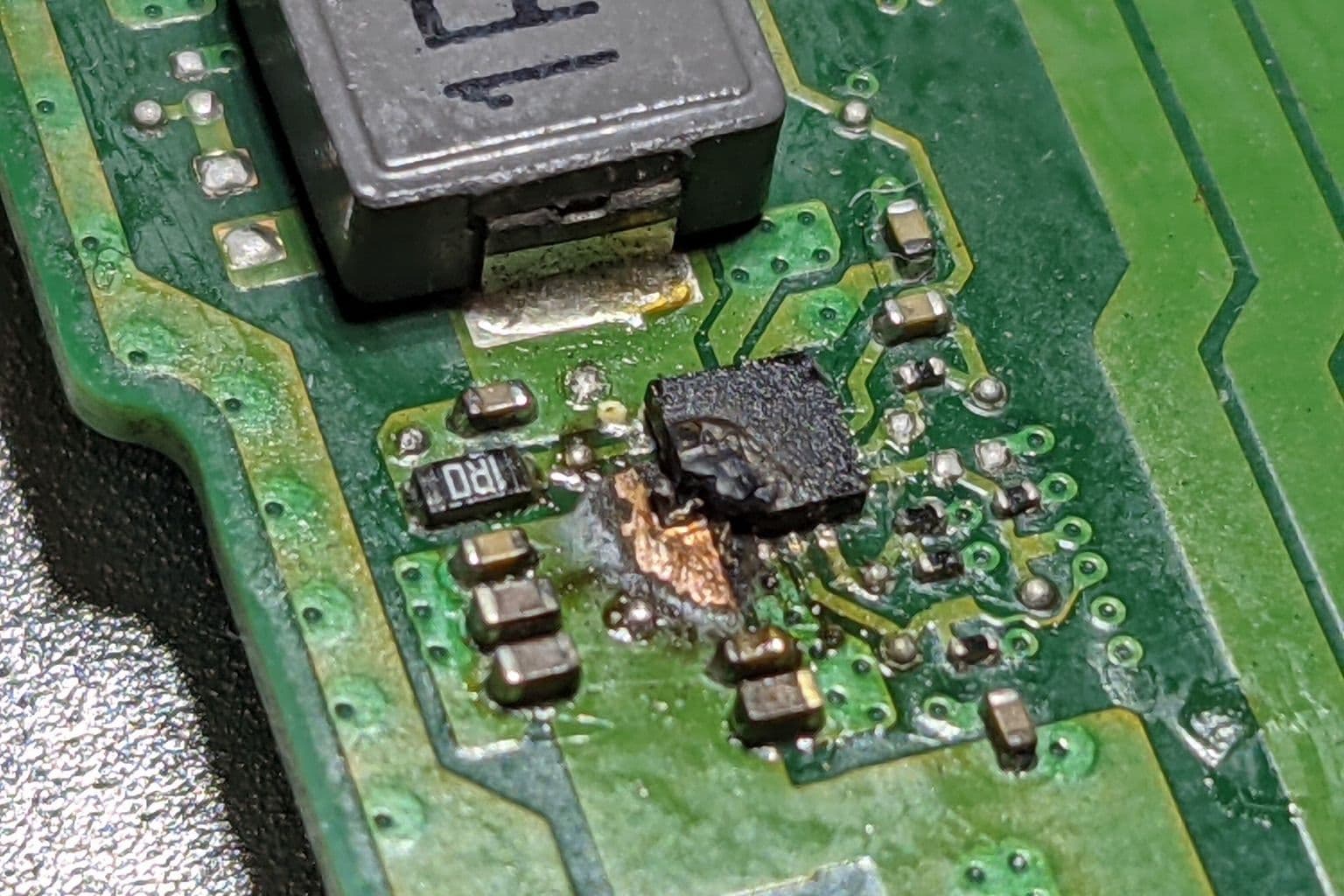
Cover photo: Microscope close-up of blown step-down regulator on laptop PCB, via Wikimedia Commons (CC0).