Docking Stations and Monitors: Getting Desk Setups Right
The dock is rarely what limits a desk. What decides how many screens a user gets, and at what resolution, is how many DisplayPort lanes the laptop hands to its USB-C port, and which operating system is running on it. Specify the host first, then buy the dock, because a dock cannot create bandwidth the laptop never offered.
The lane split decides how many screens you get
A USB-C connector carries four high speed lanes. DisplayPort Alt Mode takes two of them or all four, and that choice sets the ceiling for the desk. VESA released DisplayPort 1.4 on 1 March 2016 with the HBR3 link rate of 8.1 Gbps per lane. VESA's own arithmetic for the usable figure is 8.1 Gbps, multiplied by 0.8 to account for 8b/10b transport coding overhead, multiplied by the four available lanes, which gives 25.92 Gbps of total usable data transfer rate.
VESA's single display table for DisplayPort 1.4a at the maximum link rate turns that into screens. With no compression, four lanes reach 5120x2800 at 60fps and 24bpp, while two lanes reach 3840x2160 at 60fps and 24bpp. Turn on Display Stream Compression and four lanes reach 7680x4320 at 60fps and 30bpp, with two lanes reaching 5120x2800. VESA adds the line that matters most to a buyer: the two lane configuration is the common one for USB-C DP Alt Mode. Assume two lanes until the laptop's data sheet tells you otherwise.
Four lanes of video cost you USB speed
There is no free bandwidth. VESA's docking diagram assigns two high speed lanes to DisplayPort and two to USB 3.2, and calls that split ideal for docking stations. Take all four lanes for video instead and the same slide deck is blunt about what survives: USB 2.0 and USB Power Delivery remain available, and nothing else. The USB-A ports on that dock drop to 480 Mbps.
This reaches the IT desk as two unrelated tickets. A designer in a Business Bay office asks why the external drive on the dock copies a 40 GB project folder at the speed of a memory stick, and the accounts user on the next desk asks why their second screen will not pass 1080p. Both are the same lane allocation seen from opposite ends. Decide which the role needs before ordering 40 identical docks.
Thunderbolt 4 is a floor, which is why it is easier to buy
Intel publishes Thunderbolt 4 as a set of minimums rather than a set of maximums, and for a procurement team that is the useful part. Thunderbolt 4 requires 40 Gbps of bandwidth, dual monitor support at up to 4K minimum resolution, PCIe at 32 Gbps, up to 100W of required PC charging, and a minimum of 15W to accessory ports. Thunderbolt 5 lifts those to 80 Gbps bidirectional, dual 8K monitor support, PCIe at 64 Gbps and up to 240W.
A generic USB-C dock promises none of that. Two docks on the same shelf, same connector, both labelled for dual monitors, can behave differently on one laptop. Certification is what makes behaviour predictable across a fleet bought over three years, the usual state of a Dubai SME that has grown by hiring rather than by refresh cycle. When the real question is replacement timing, that is a separate calculation about laptop lifespan.
macOS does not do MST, and mixed fleets pay for it
Multi-Stream Transport is the DisplayPort feature that lets one stream drive two independent screens, and it is how most docks deliver extended desktop. Dell's own knowledge base article on its Thunderbolt docks with Apple USB-C hosts marks MST support for monitors in extended desktop mode as "No (workaround required)" for Apple systems, against "Yes" for Dell commercial notebooks, and states the reason as a lack of support for Multi-Stream Transport in macOS. The article covers the WD19TB, WD19TBS, WD22TB4 and SD25TB4.
So a Mac user with two monitors on the dock's DisplayPort outputs gets a mirrored pair rather than an extended desktop. Dell's workaround is one monitor on a DisplayPort output and the other on the Thunderbolt port, or daisy chaining through Thunderbolt displays. The same article lists what else does not carry over to Apple hosts: audio through the 3.5 mm headset jack, MAC address pass-through, Wake on Dock, Wake-on-LAN, and firmware updates run from the computer's operating system. Dell puts the ceiling at dual 4K at 60Hz or a single 5K at 60Hz for a MacBook Pro or Air with Thunderbolt 3 or 4, and a single 4K at 60Hz for a MacBook on plain USB-C. An office in DIFC with designers on Macs and finance on Windows needs that in the standard, not discovered on the first morning.
Two ports that look the same and are not
Dell documents a fault that costs an afternoon. On the WD19, WD19S, WD19DC, WD19DCS, WD19TB, WD19TBS and WD22TB4, daisy chained monitors fail to show dual video through the MFDP port, which is the Multi-Function DisplayPort. Dell gives the cause as a limitation in the high-speed interface IC regarding the 8bit/10bit internal alignment feature, which may result in incorrect information being sent to the monitor. The native DP 1.4 port supports MST on monitors with Display Stream Compression; the MFDP port does not. Dell's resolution is to move the monitors to the native DisplayPort 1.4 output.
Separately, Dell's D1000, D3100 and D6000 series use DisplayLink video, which has no MST and therefore no daisy chaining. Three docks from one maker, three video behaviours. Label the ports at the desk during the fit-out and the support queue gets shorter. Dell hardware sits on the Dell EMC pages of the shop.
The watt number on the box is not the watt number at the laptop
Lenovo states this plainly in its own footnote for the ThinkPad Universal USB-C Dock. The dock charges 65W to notebooks with the inbox 90W power adapter attached, and reaching 100W needs the 135W Slim Tip power adapter, option part number 4X20E50558 for the US, sold separately. A dock advertised at 100W therefore ships configured for 65W.
That gap decides whether a machine charges while it works. The ceiling moved on 26 May 2021, when the USB Promoter Group released USB Power Delivery Revision 3.1 and added 28V, 36V and 48V fixed voltages for 140W, 180W and 240W, lifting a cap that had sat at 100W using 20V over cables rated at 5A. A thin notebook is comfortable at 65W. A mobile workstation running a render is not, and it will drain at the desk while the user watches the battery icon and blames the dock.
Read the footnotes on the dock you are about to standardise on
One Lenovo product line shows why the footnotes matter. The v2 data sheet, part number 40B70090xx, lists two DisplayPort 1.4 outputs and one HDMI 2.0 and quotes the resolution as Multi 4K at 60 Hz, then qualifies it: the dock has capability to support a maximum of three 4K displays, and the real resolution will depend on your PC and monitor capability. The earlier 40AY brochure for the same family claimed four. Supported operating system moved from Windows 10 and above to Windows 11 and above, and the qualified system list narrowed to select 2022 and 2023 ThinkPad and Lenovo notebooks.
Lenovo also warns that MAC address pass-through, Wake-on-LAN and the mirrored power button may not be available on non-Lenovo branded notebooks, even though the dock works with any host supporting standard USB-C Alt Mode or Thunderbolt. Where a deployment depends on PXE boot through the dock, that footnote is the plan. Heat is seldom the issue indoors, since the dock is rated to a 60 °C maximum operating temperature that no air conditioned office in Dubai Silicon Oasis will approach. The Lenovo pages of the shop carry the rest of that line.
The adapter in the drawer has a ceiling too
VESA is explicit that USB Type-C will not support DisplayPort Dual Mode, the passive DP++ arrangement older DisplayPort to HDMI adapters rely on, and that USB Type-C to HDMI converters support up to HDMI 2.0b and CEC. Every USB-C to HDMI adapter is therefore an active conversion capped at HDMI 2.0b, whatever the monitor behind it can do.
What to put in the request for quotation
Name the host, not only the dock. State the laptop model, whether its USB-C port is Thunderbolt 4 or USB-C Alt Mode, and whether it presents two DisplayPort lanes or four. Give the monitor count with the exact resolution and refresh rate per desk, since 3840x2160 at 60Hz on two screens is a different order from 2560x1440 on two. Say which desks run macOS, so extended desktop is designed around the Thunderbolt port instead of the DisplayPort pair. Specify the power adapter by wattage and part number rather than accepting the inbox default. Ask for one sample tested against a real laptop from the fleet before the rest of the order is released, because a dual monitor claim verified on a 2023 ThinkPad proves nothing about a 2021 machine on the next desk. Laptop selection drives all of it, which is covered in the comparison of business and consumer laptops for UAE companies.
Every item on this store is quoted rather than priced, so send the host models and per desk screen counts with the enquiry and the quote comes back against that specification instead of against a generic dock description.
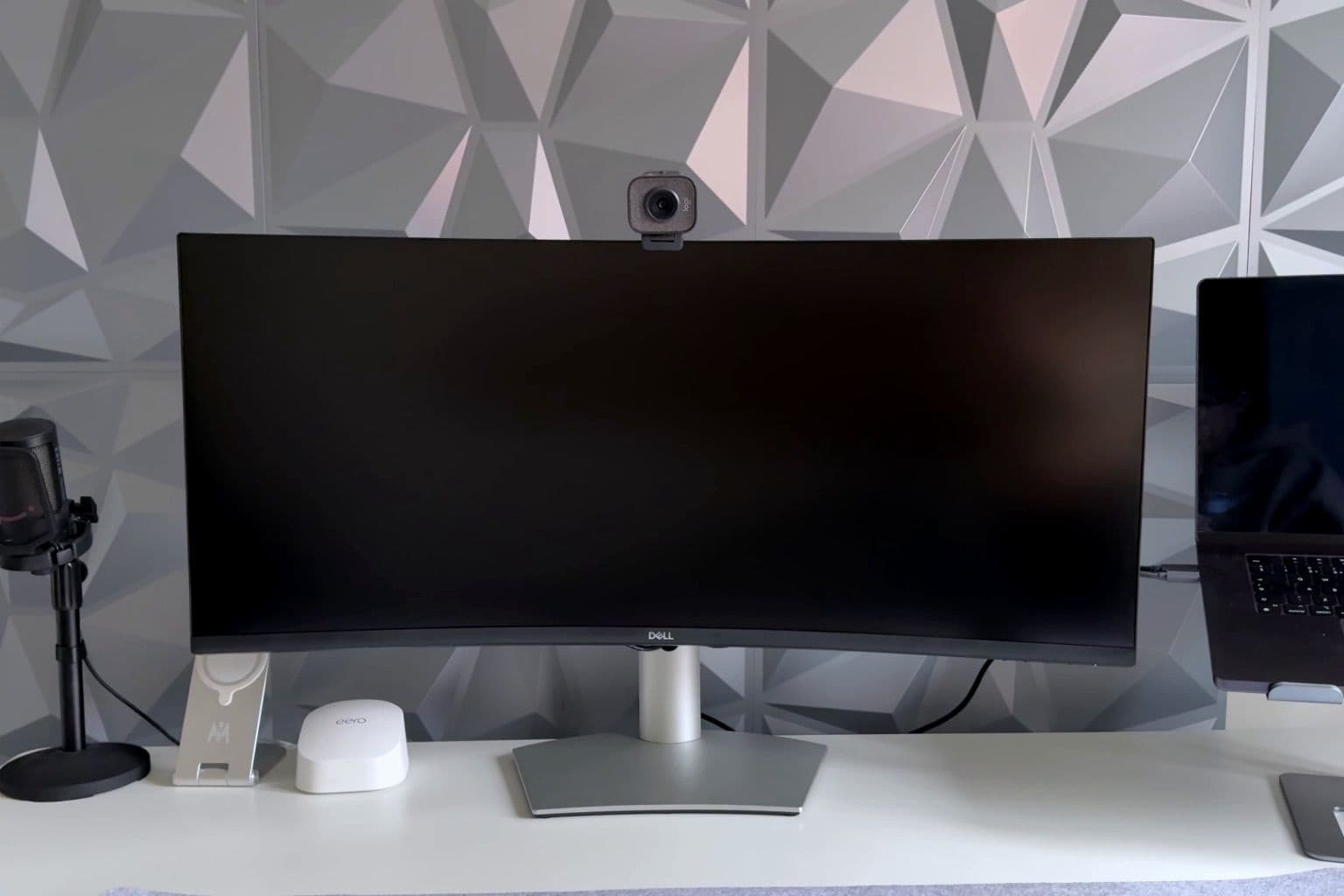
Cover photo: Dell S3423DWC unboxing, desk setup 2 by XALIRATE, via Wikimedia Commons (CC BY 4.0).