HP Shop Near Me in Dubai: Matching Docks, Chargers and Monitors to Your Laptop
If you are heading to an HP shop near me in Dubai for a dock, charger or monitor, take one thing with you: the laptop's full product number. Accessories are matched to the laptop, not to the brand. Check which ports the laptop actually has (Thunderbolt, USB-C with display and power, or neither), how many watts its charger is rated for, and which video outputs your monitors accept. With those three facts, a docking station, power adapter and screens can be chosen in minutes. Without them, the wrong dock charges slowly, drives one screen instead of two, or does not work at all. This guide shows how to read those facts from HP's own labels and specifications.
Start with the product number, not the model name
HP's support article on product and serial numbers explains that the name on the front of a product often covers a whole series of models with different options and parts. Two laptops sold under one name can have different ports, different processors and different chargers, so an accessory that suits one may not suit the other.
HP gives three ways to find the product number on a notebook: the label on the bottom, the box it shipped in, or the HP System Information window, which opens when you press fn and esc together on the built in keyboard. HP Support Assistant also shows it on the My Dashboard tab. Photograph the label or copy the number into your phone before you leave the office. At the counter, that one string answers most compatibility questions, and a good seller will ask for it.
For HP's business notebooks, HP publishes specification documents for each model that list ports and supported accessories. If the shop cannot confirm compatibility, those documents are the reference, and they are worth reading before buying several docks for a team.
Thunderbolt or USB-C: the question that decides the dock
The single most common accessory mistake is treating every oval port as the same. Intel, which develops Thunderbolt, puts it plainly on its Thunderbolt 4 versus USB-C page: Thunderbolt 4 uses the same connector shape as USB-C but is not the same as USB-C, because certification sets stricter requirements.
According to Intel, Thunderbolt 4 certification requires support for power, data and video with constant 40 Gbps bandwidth, support for up to two 4K displays at 60 Hz or one 8K display at 60 Hz, and laptop charging of up to 100W. Intel also notes that a Thunderbolt port is identified by a small lightning symbol next to the connector.
A plain USB-C port carries no such guarantee. Depending on the laptop, it may carry data only, data and charging, or data, charging and video. That is why the same dock can behave perfectly on one laptop and poorly on another.
How to read the ports on your laptop
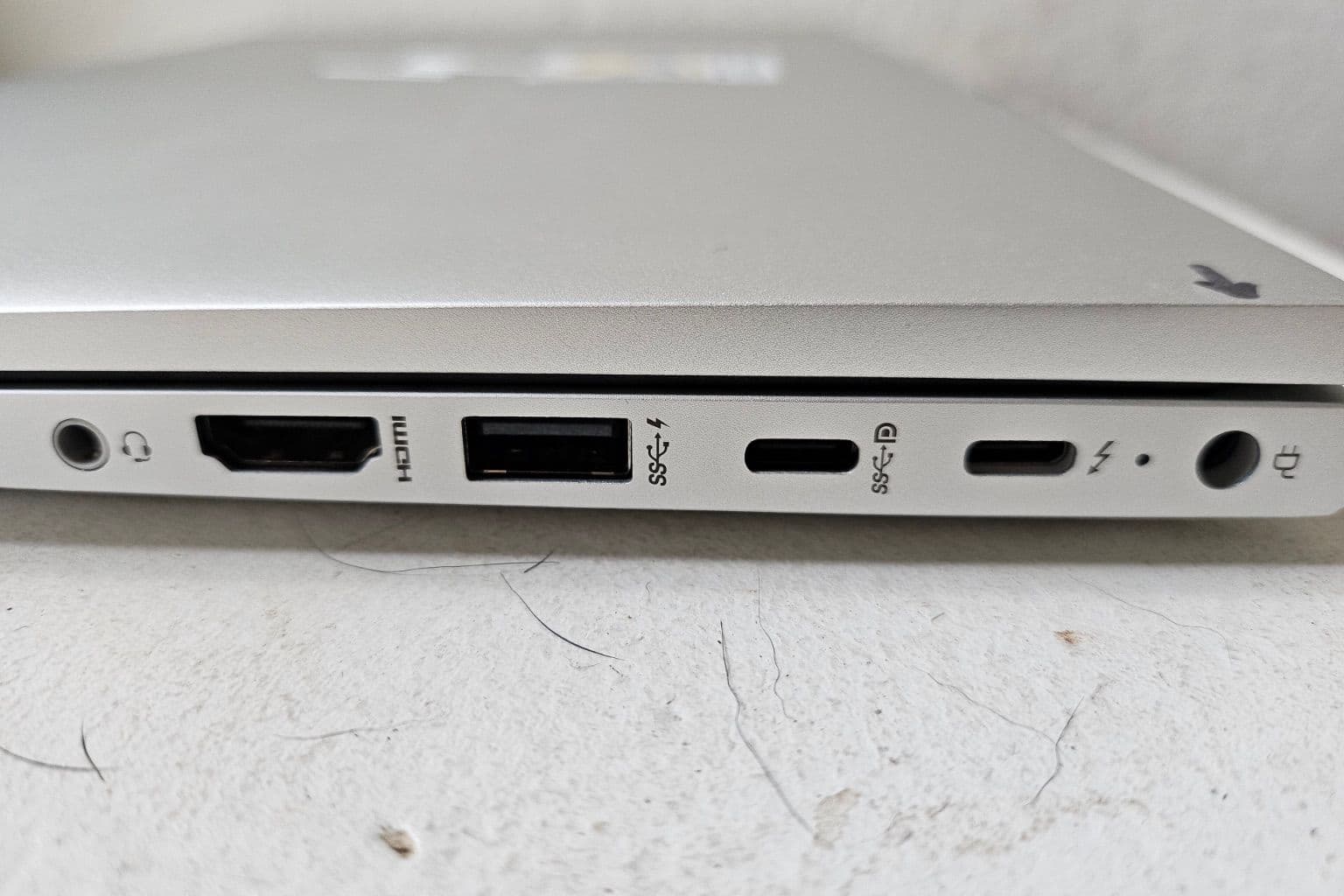
Laptop makers usually print small icons beside each port, and the cover photo of this article, taken of an HP EliteBook 640, shows a typical set. Treat the icons as a first clue and the specification as the final word.
- Lightning symbol beside a USB-C port: Thunderbolt, as Intel describes. A Thunderbolt dock is the natural match, and many USB-C docks will also work.
- A small "D" shaped DisplayPort icon beside a USB-C port: the port is marked for video output, so a USB-C dock should be able to drive external screens.
- A small lightning beside a USB-A port: usually a charging port for phones and accessories, not Thunderbolt.
- No icon beside a USB-C port: check the specification before buying a dock. The port may carry data only.
Choosing an HP dock: what HP's own specifications show
HP sells both Thunderbolt and USB-C docks, and the power figures differ a lot between them. HP's current docks listing (from HP's Australian store, so availability in the UAE may differ) includes these models:
| HP dock or hub | Connection | Power to the laptop, as HP lists it |
|---|---|---|
| HP USB-C 100W G6 Dock | USB-C | 100W USB-C connection |
| HP Thunderbolt 4 100W G6 Dock | Thunderbolt 4 | Up to 100W |
| HP Thunderbolt 4 Ultra 180W G6 Dock | Thunderbolt 4 | Up to 180W |
| HP Thunderbolt 4 Ultra 280W G6 Dock | Thunderbolt 4 combo cable | Up to 280W |
| HP USB-C Travel Hub G3 | USB-C | Up to 65W passthrough |
Older docks are still common on Dubai desks. HP's specification page for the HP Thunderbolt Dock 120W G4 lists an adapter output of 19.5V at 6.15A, two DisplayPort 1.4 outputs, one HDMI 2.0 output, a USB-C port with DisplayPort Alt Mode, a Thunderbolt 4 port, an Ethernet port backed by internal cards for 1Gb and 2.5Gb speeds, and compatibility with Windows 11, Windows 10, macOS and Chrome. HP lists a one year limited warranty for it.
Matching dock power to the laptop
The dock's power figure has to cover what the laptop needs. A thin business notebook that ships with a modest charger is comfortable on a 100W dock. A mobile workstation with a large charger and a dedicated graphics card may need far more, which is why HP offers high wattage Ultra docks with combo cables. If a dock supplies less than the laptop wants, the laptop will usually still run but may charge slowly or limit performance. Check the wattage printed on the laptop's own charger and choose a dock that meets it.
Power adapters: wattage, plugs and spares
A spare charger is the accessory most offices buy most often, and the easiest to get wrong. Three things matter.
- Wattage. The rating is printed on the label of the original adapter. Buy a replacement at the same rating or higher. HP laptops connected to a lower rated adapter commonly show a warning asking for a higher capacity adapter, and may slow the processor or charge slowly or not at all.
- Connector. Older HP business notebooks use barrel connectors of different sizes. Newer models often charge over USB-C. Match the connector shown on the original adapter, or confirm the laptop accepts USB-C charging.
- Plug and cable. Units built for other markets may come with a different mains plug. Make sure the replacement or its cable suits UAE sockets.
For a team, buying one spare adapter per model rather than per person is usually enough, provided everyone is on the same few models. That is another reason to keep a fleet consistent.
Monitors: count the outputs before you count the screens
Before choosing a monitor, decide how it will connect. The options depend on the laptop and the dock:
- Direct HDMI from the laptop. Simple, one screen, no dock needed.
- Through a dock. The dock's video outputs decide how many screens you can run. The G4 dock above, for example, offers two DisplayPort outputs and one HDMI output.
- A USB-C monitor. Some monitors accept video, data and charging over one USB-C cable, which can replace a dock on a simple desk, but only if the laptop's USB-C port carries video and accepts charging.
Remember the Thunderbolt 4 baseline from Intel: up to two 4K displays at 60 Hz. If you plan three screens or very high resolutions, check the specific dock and laptop specifications rather than assuming. Our guide to getting docking stations and monitors right goes deeper into desk layouts, cable runs and screen sizes.
Keyboards, mice and bags
These look like the easy items, but two points are worth a moment at the counter.
- Keyboard layout. External keyboards come in different layouts, including combined English and Arabic. Match the layout to the laptop's built in keyboard so staff are not switching between two arrangements of symbols.
- Connection. A wireless set with its own receiver uses a USB port on the dock or laptop. Bluetooth sets do not, which helps on laptops with few ports.
- Bag size. Measure the laptop rather than trusting the screen size alone, especially for workstation models that are thicker than standard notebooks.
Test it at the counter before you pay
Accessories are cheap to test and annoying to return, so ask the shop to plug them in while you are there. Most good counters have a demo laptop or will let you connect your own.
- Dock: connect it to your laptop with the single cable it came with, and check that the laptop shows it is charging, that an external screen lights up, and that a USB device and the network port respond.
- Charger: connect it and leave it for a minute. Watch for a low power warning on screen, and check the charging indicator.
- Monitor cable or adapter: confirm the picture appears at the resolution you expect, not a lower fallback.
- Keyboard and mouse: type a line of symbols and an email address to confirm the layout matches the key caps.
The cable matters as much as the dock
Not every cable with USB-C ends is equal. A short cable supplied with a dock is matched to it, and replacing it with a random spare can cut charging power or video. Intel's point about Thunderbolt applies here too: the connector shape looks the same, but the capability does not. If the desk layout needs a longer run, ask for a cable rated for the same standard as the dock rather than the cheapest one on the hook.
A short list to take to any HP shop near me
Whichever HP shop near me you end up in, these notes make the visit quick:
- Laptop product number, photographed from the label.
- Photo of the laptop's side ports, showing any lightning or DisplayPort symbols.
- Wattage and connector type from the existing charger label.
- Monitor model and the inputs on its back (HDMI, DisplayPort, USB-C).
- How many screens each desk needs.
FAQ: HP accessories in Dubai
Will an HP Thunderbolt dock work with a laptop that only has USB-C?
Often it will run, with limitations, if the USB-C port carries video and charging. Features and charging power can be reduced. Check the laptop's port symbols and specification first, or choose a USB-C dock instead.
Can I use a 65W charger on a laptop that came with a higher rated one?
It may power on, but expect slow charging or reduced performance, and HP laptops typically display a warning. Buy an adapter at the original rating or higher.
How many monitors can a dock drive?
It depends on the dock's outputs and on the laptop. Intel's Thunderbolt 4 baseline is two 4K screens at 60 Hz. For anything beyond that, check the dock and laptop specifications together.
Do HP docks work with other brands of laptop?
HP lists Windows, macOS and Chrome compatibility for the Thunderbolt Dock 120W G4, so they can, but some features may behave differently on non HP machines. Test one before buying for a mixed fleet.
Does Codeeo Tech run an HP shop?
No. Codeeo Tech is a B2B IT hardware supplier in Dubai Silicon Oasis. We supply HP hardware to businesses on quotation, but we are not HP and not an HP service centre.
Equipping several desks through Codeeo Tech
Matching one dock to one laptop at a counter is easy. Matching docks, chargers, monitors and keyboards across a whole office is where a supplier helps, because every desk can be specified once and quoted together. Codeeo Tech supplies HP laptops and accessories to businesses from Building A1, IFZA Business Park, Dubai Silicon Oasis. Browse the HP range, including used business notebooks such as the HP ProBook 640 G5, with every item priced through Add to Quote. If the office also needs clean power for those desks, our guide to UPS power protection for Dubai offices is a useful next read.
What to send with an enquiry:
- The product numbers of the laptops in use, and how many of each.
- Screens per desk and the monitor models you already own, if any.
- Whether you want docks, USB-C monitors or both.
- Keyboard layout and any spare chargers needed.
- Delivery address and the company name for the invoice.
Send it through the contact form and the quote will list each accessory against the laptop it is meant for.
Cover photo: Receptacle ports on an HP elitebook 640, via Wikimedia Commons (CC0).